


Introduction
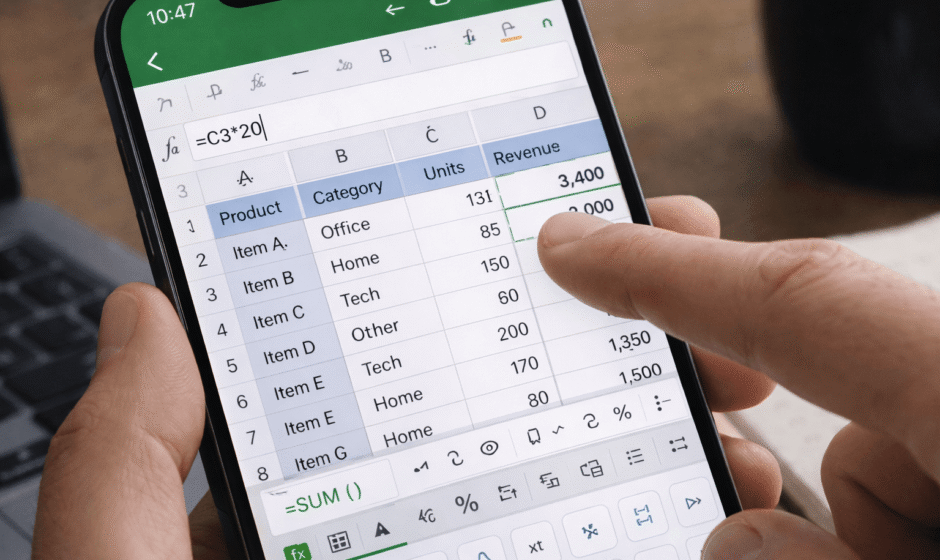
You don’t always have access to a laptop — and that’s where mobile Excel becomes incredibly useful.
Whether you’re checking data, editing spreadsheets, or making quick calculations, using Excel on your phone can save time and keep you productive anywhere.
The mobile version is simplified, but still powerful enough for most everyday tasks.
In this guide, you’ll learn how to use Excel on mobile devices step by step.
What You Can Do With Excel on Mobile
The mobile version supports most essential features.
You can:
- Create spreadsheets
- Edit data
- Use formulas
- Format cells
- Share files
- Collaborate with teams
This makes it ideal for quick work on the go.
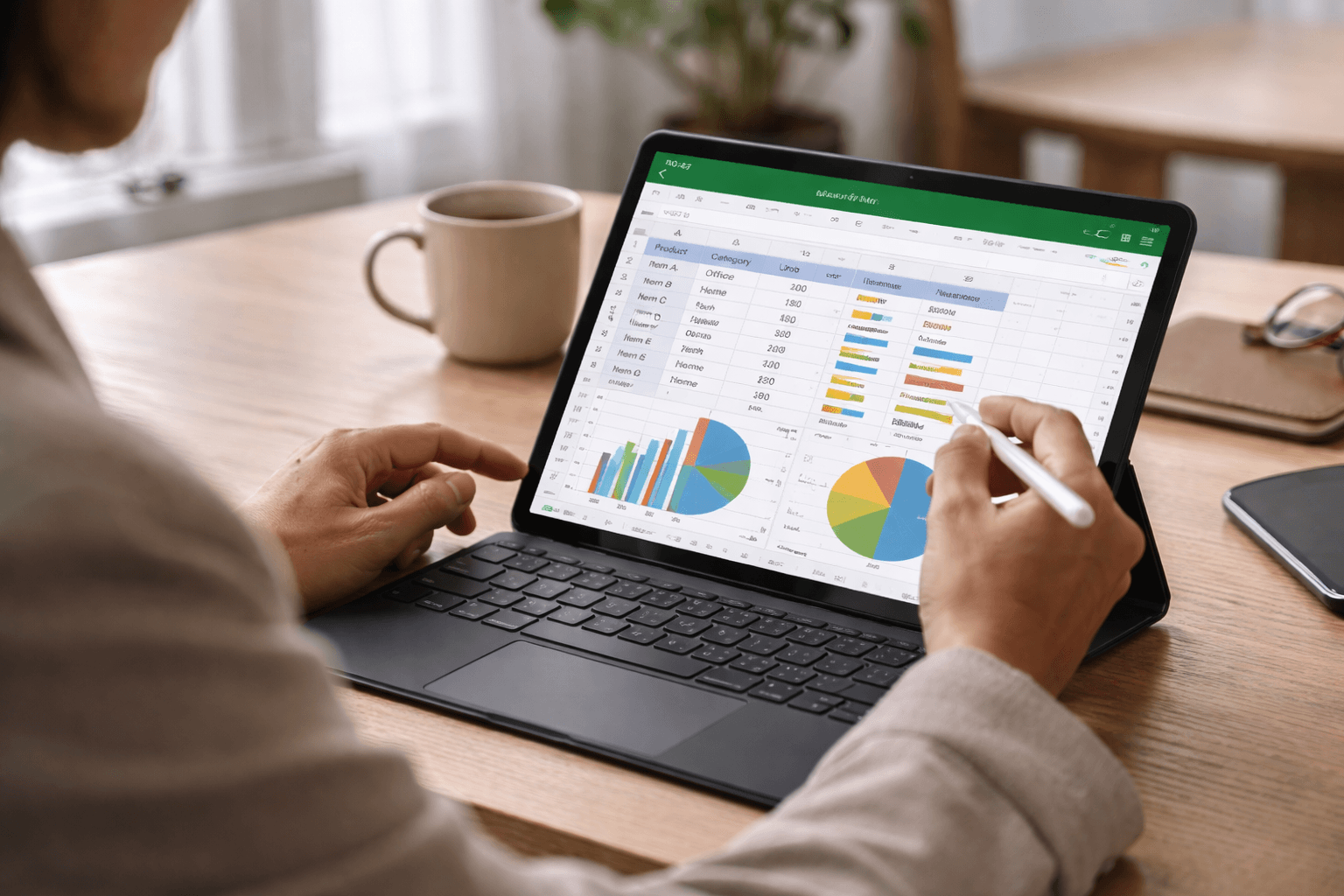
Step 1: Open or Create a Spreadsheet
After opening the Excel app, you can:
- Create a new blank sheet
- Open an existing file
- Use a template
Starting from a template is often faster for beginners.
Step 2: Enter and Edit Data
Tap any cell to start typing.
Mobile tips:
- Tap twice to edit a cell
- Use keyboard arrows to move
- Tap checkmark to confirm
This works similar to desktop Excel but optimized for touch.
Step 3: Use Basic Formulas
You can still use formulas on mobile.
Common examples:
SUM:
=SUM(A1:A10)
AVERAGE:
=AVERAGE(A1:A10)
IF:
=IF(A1>50,"Yes","No")
Formulas work the same as desktop version.
Step 4: Format Your Spreadsheet
Mobile Excel includes formatting tools.
You can:
- Bold text
- Change colors
- Add borders
- Adjust alignment
Clean formatting improves readability.
Step 5: Sort and Filter Data
Sorting is easy on mobile.
You can:
- Sort A–Z
- Sort by numbers
- Apply filters
This helps manage larger datasets.
Step 6: Share and Collaborate
Excel mobile supports collaboration.
You can:
- Share file links
- Allow editing
- Work in real time
Perfect for quick team updates.
Step 7: Use Tables for Better Organization
Tables make mobile editing easier.
Benefits:
- Structured data
- Easy scrolling
- Better readability
Tables are especially useful on small screens.

Excel Mobile vs Desktop
| Feature | Mobile | Desktop |
|---|---|---|
| Editing | Yes | Yes |
| Formulas | Yes | Yes |
| Advanced formulas | Limited | Full |
| Charts | Basic | Advanced |
| Ease of use | Easy | Medium |
Mobile is best for quick edits, desktop for advanced work.
Common Mistakes
Trying to Do Complex Work
Mobile Excel is best for simple tasks.
Ignoring Screen Size
Keep sheets simple for readability.
Overusing Formulas
Complex formulas are harder on mobile.
Pro Tips
Keep Sheets Simple
Simpler layout works better on phones.
Use Short Columns
Avoid horizontal scrolling.
Zoom When Editing
Improves accuracy.
Use Templates
Speeds up workflow.
Conclusion
Excel on mobile is perfect for quick edits, simple calculations, and on-the-go productivity.
You don’t need a laptop to stay organized or manage your data.
Use mobile Excel for speed, and switch to desktop for advanced work.
Because sometimes the best productivity tool is the one already in your pocket.

