


Introduction
Your PS5 is powerful right out of the box — but if you’re using the default settings, you’re not getting the full experience.
Better performance, smoother gameplay, and improved visuals often come down to a few key adjustments.
The good part is you don’t need to tweak everything. Just a handful of settings can make a noticeable difference, especially if you’re just getting started.
In this guide, I’ll show you the best PS5 settings to improve your gaming experience right away.
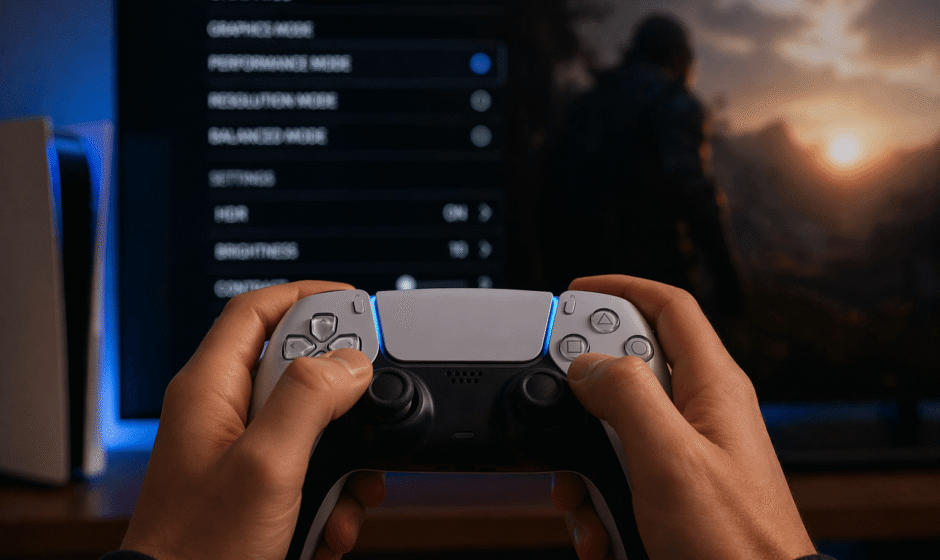
Set Performance Mode as Default
This is one of the most important settings you can change.
What to Do
Go to:
- Settings → Saved Data and Game/App Settings → Game Presets
Set:
- Performance Mode
Why It Matters
- Higher FPS (frames per second)
- Smoother gameplay
- Better responsiveness
For most players, this is the best default choice.
Adjust Resolution and Output
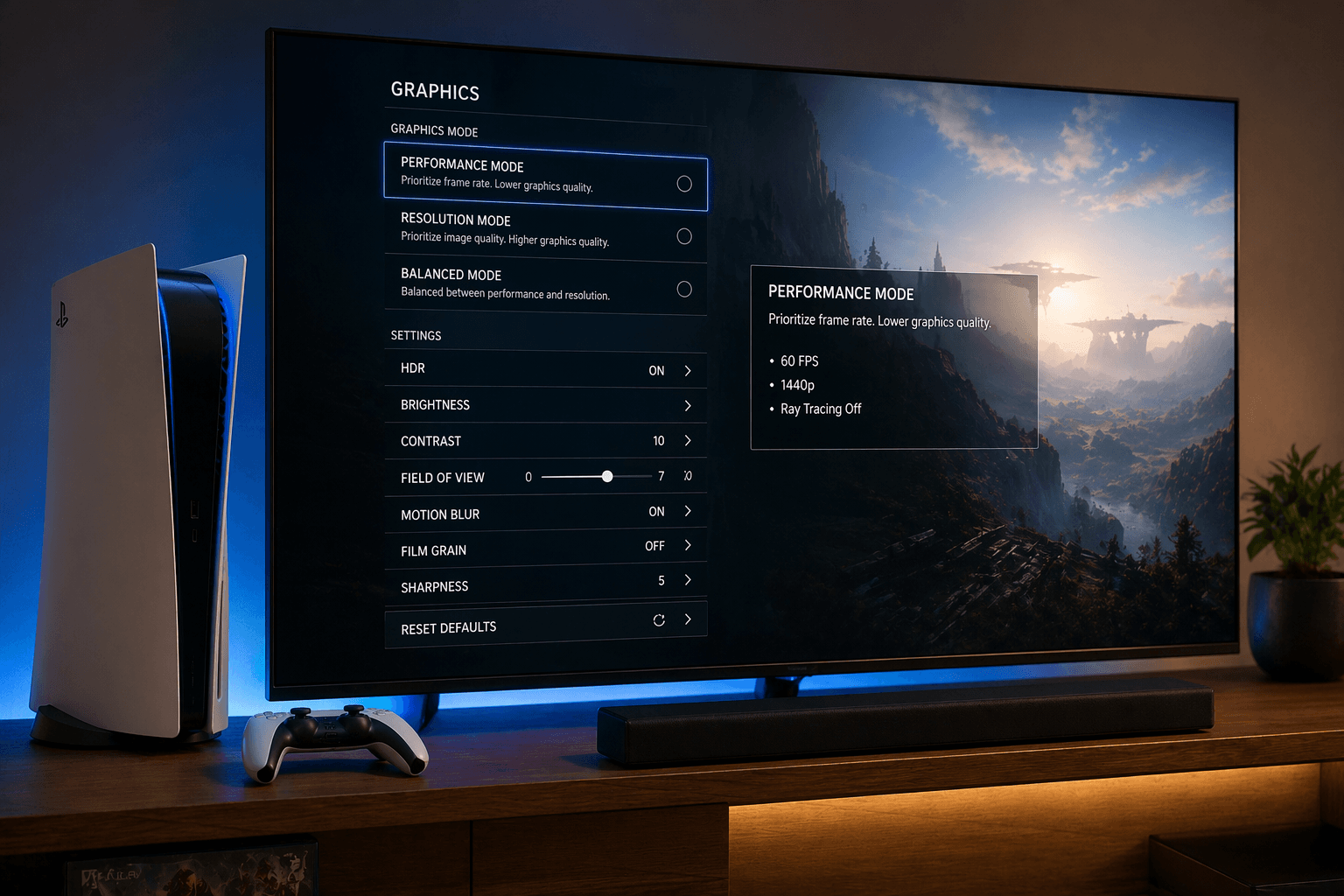
Your display settings should match your TV or monitor capabilities for the best visual quality.
Recommended Settings
- Resolution: Automatic (or 4K if supported)
- HDR: On (if your display supports it properly)
- Output: Match your screen’s capabilities
Tip
If your display doesn’t handle HDR well, turning it off can sometimes result in better and more natural visuals.
Enable Game Mode on Your TV
This is one of the most overlooked settings, but it can make a big difference.
Why It Matters
- Reduces input lag
- Improves responsiveness
- Makes gameplay feel smoother
Most TVs include a “Game Mode” option in their settings. Turning it on is a quick win for better performance.
Configure Controller Settings
Your controller setup can directly affect how the game feels.
Key Settings
- Vibration intensity → Medium or low
- Trigger effect → Medium or off (especially for competitive games)
- Stick sensitivity → Adjust based on your preference
Tip
Lower vibration can help you stay focused during fast-paced gameplay.
Adjust Audio Settings
Good audio isn’t just about immersion — it also improves awareness in games.
Recommended Setup
- Output device → Headphones (if available)
- 3D Audio → On
- Volume balance → Adjust for clarity
Why It Helps
- Better directional sound
- Faster reaction to in-game events
- More immersive experience
Manage Storage Properly
Storage management affects both performance and convenience.
Tips
- Keep at least 20% free space
- Remove games you no longer play
- Install frequently played games on the internal SSD
Keeping your storage clean helps maintain smooth system performance.
Update System and Games Regularly
Updates are important for performance, stability, and bug fixes.
Always:
- Enable automatic updates
- Keep system software up to date
- Update games before playing
This ensures you’re always getting the best possible experience.
Customize Game-Specific Settings
Each game has its own settings, so adjusting them individually can improve performance.
Common Options
- Graphics mode (Performance vs Quality)
- Sensitivity settings
- HUD customization
Tip
For beginners:
- Choose performance mode for smoother gameplay
- Start with default sensitivity, then adjust gradually
Performance vs Quality Mode
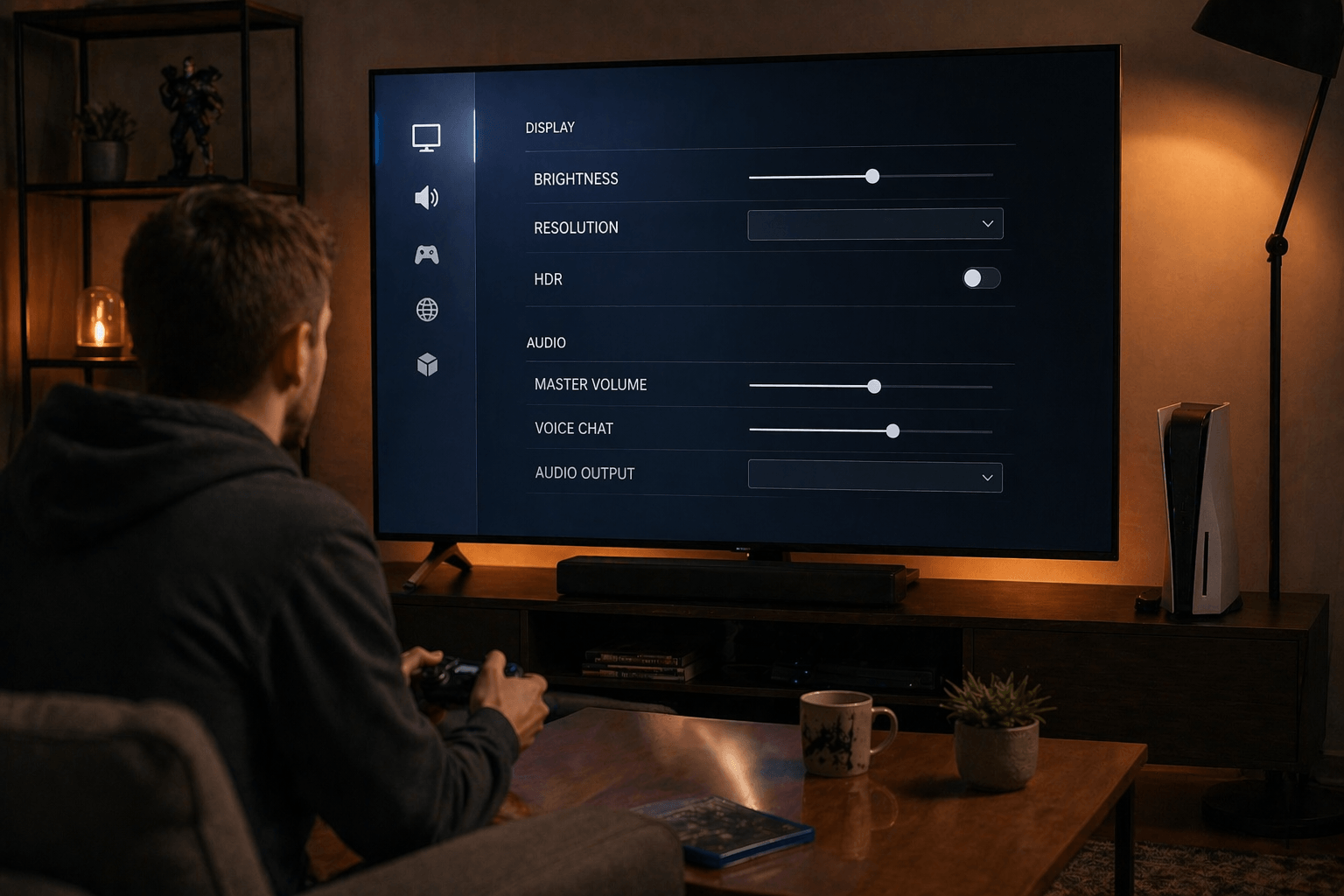
Most modern PS5 games offer two main modes. Choosing the right one has a direct impact on your experience.
| Mode | Best For | Result |
|---|---|---|
| Performance | Smooth gameplay | Higher FPS |
| Quality | Visual detail | Better graphics |
Recommendation
For most players, especially beginners, Performance Mode is the better choice. The smoother gameplay makes a noticeable difference.
Common Mistakes Beginners Make
Using Default Settings
Default settings are not always optimized for the best performance or experience.
Ignoring TV Settings
Your display settings matter just as much as your console settings.
Playing Only in Quality Mode
Better visuals are nice, but lower FPS can make gameplay feel less responsive.
Pro Tips for Better Gameplay
Prioritize FPS Over Graphics
Smoother gameplay often gives you a better overall experience than higher visual quality.
Use Wired Internet
A wired connection reduces lag and provides more stable performance in online games.
Adjust Sensitivity Gradually
Small adjustments can significantly improve control and accuracy.
Keep Setup Simple
Avoid overcomplicating settings. A clean and optimized setup works best.
Conclusion
The PS5 is already powerful, but the right settings help you get the most out of it.
With just a few adjustments, you can:
- Improve performance
- Reduce input lag
- Enhance visuals
- Play more smoothly
Start with Performance Mode, optimize your display, and fine-tune your controller settings.
Because better settings don’t just improve your console — they improve how you play.