


Introduction
Design work often involves repetitive tasks, and from my experience, these small actions can quickly take up a significant amount of time. Resizing elements, updating styles, duplicating components, and adjusting layouts can easily slow down your workflow.
When I started using Figma more actively, I realized that many of these tasks don’t actually need to be done manually. Figma already includes built-in features that can automate a large part of the design process.
The good news is that once you use these tools correctly, you can work faster, maintain consistency, and reduce unnecessary effort.
In this guide, I’ll show you how to automate tasks in Figma and improve your overall workflow.
Why Automation Matters in Figma
Automation in Figma is not just about saving time — it’s about working more efficiently and avoiding repetitive mistakes.
It helps you:
- Save time on repetitive tasks
- Keep your designs consistent
- Reduce manual errors
- Scale design systems more easily
- Collaborate more effectively with teams
Even small automation improvements can make a noticeable difference, especially in larger projects.
Use Components for Reusable Elements
Components are the foundation of automation in Figma. Instead of recreating the same elements repeatedly, you can reuse them across your designs.
Common examples include:
- Buttons
- Cards
- Navigation bars
- UI sections
The key advantage is that when you update the main component, all instances update automatically. This can save hours of manual work over time.
Use Auto Layout for Dynamic Design
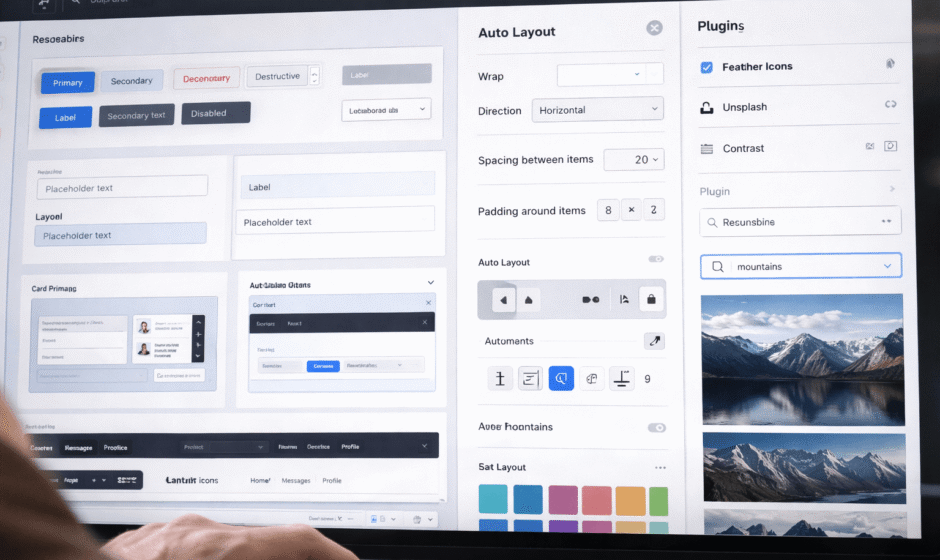
Auto Layout is one of the most powerful features in Figma. It automatically manages spacing and alignment, which removes a lot of manual adjustments.
Benefits include:
- Automatic resizing of elements
- Consistent spacing between components
- Flexible and responsive layouts
- Faster UI building
Once you get used to Auto Layout, manual alignment becomes almost unnecessary.

Create Variants for Multiple States
Variants make it much easier to manage different versions of the same component without creating separate elements every time.
For example:
- Button (default)
- Button (hover)
- Button (disabled)
- Button (active)
Instead of handling these as separate components, you can control everything from a single place. This keeps your file organized and reduces unnecessary duplication.
From my experience, using variants properly makes complex UI systems much easier to manage.
Use Styles for Global Updates
Styles allow you to manage typography, colors, and effects across your entire design from one central source.
You can create:
- Text styles
- Color styles
- Effect styles
- Grid styles
When you update a style, it automatically updates everywhere it’s used. This is one of the most effective ways to save time and keep your design consistent.
Use Variables for Design Automation
Variables are one of the newer features in Figma and can significantly improve how you manage design values.
You can control:
- Colors
- Spacing
- Sizes
- Themes
Benefits:
- Easy theme switching
- Consistent spacing across layouts
- Faster global updates
In practice, variables make your designs more scalable and easier to maintain, especially in larger projects.
Use Plugins for Automation
Plugins extend Figma’s functionality and help automate tasks that would otherwise take a lot of time.
With plugins, you can automate:
- Content generation
- Data population
- Layer renaming
- Layout adjustments
Using the right plugins can significantly reduce manual work and speed up your workflow.
Create Design Systems
A design system helps you automate consistency across your entire project.
It typically includes:
- Reusable components
- Defined styles
- Layout rules
- Clear naming conventions
This is especially important when working in teams, as it keeps everyone aligned and improves efficiency.
Batch Editing for Multiple Elements
Figma allows you to edit multiple elements at once, which is extremely useful for large-scale updates.
You can:
- Change text across multiple layers
- Update colors instantly
- Adjust sizes
- Apply styles to multiple elements
From my experience, this feature alone can save a lot of time when working on bigger design projects.

Figma Automation vs Manual Workflow
To better understand the impact of automation, it helps to compare it directly with a manual workflow.
| Task | Manual | Automated |
|---|---|---|
| Button updates | Slow | Instant |
| Layout changes | Manual adjustments | Auto Layout |
| Color changes | Individual edits | Global styles |
| Reusable UI | Duplicating elements | Components |
From my experience, once you switch to an automated workflow, going back to manual design feels extremely inefficient.
Common Mistakes Designers Make
Not Using Components
Skipping components leads to inconsistent designs and makes updates much harder later on.
Ignoring Auto Layout
Relying on manual alignment slows down the design process and creates unnecessary work.
No Style System
Without a proper style system, updating colors or typography across a project becomes time-consuming and error-prone.
Pro Tips for Faster Workflow
Start With Components
Build reusable elements first so you don’t have to recreate the same UI multiple times.
Use Auto Layout Everywhere
Applying Auto Layout consistently reduces manual spacing and alignment work.
Create Global Styles
Using global styles makes it much easier to manage updates across your entire design.
Keep Naming Consistent
Clear and consistent naming improves organization and helps teams collaborate more effectively.
Conclusion
Figma automation is all about working smarter instead of harder.
By using components, Auto Layout, styles, and plugins, you can eliminate repetitive tasks and significantly speed up your workflow.
Start small, automate gradually, and focus on building reusable systems that scale over time.
Because in the end, the fastest designers aren’t the ones who click faster — they’re the ones who automate more effectively.